Find your next piece.
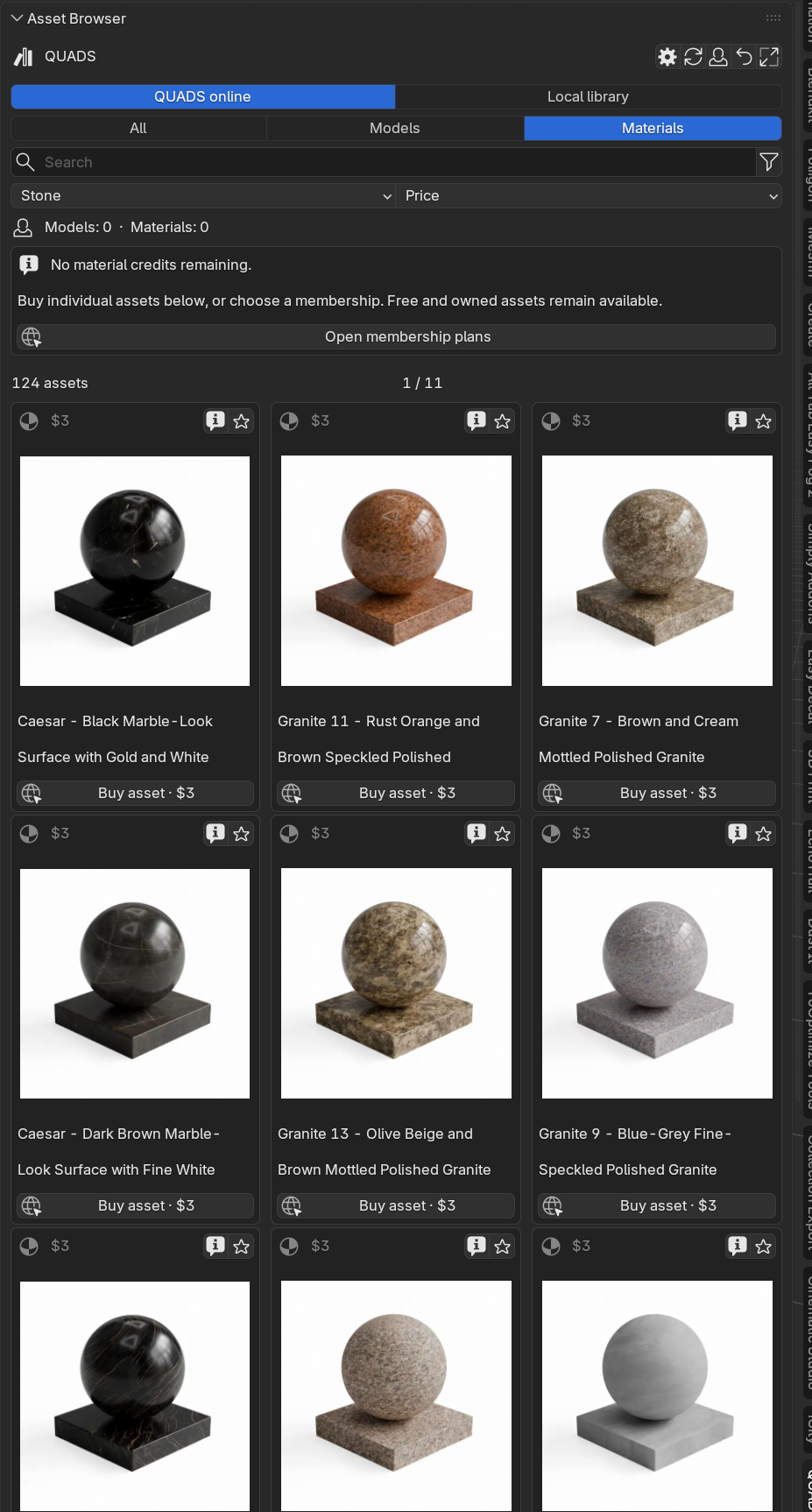
Browse models and materials by category, subcategory or search. Save favorites and filter your purchased assets.
QUADS / BLENDER ADD-ON
Your QUADS library.
Right inside Blender.
Browse models, explore materials and bring your own local assets into one familiar workspace. Find the right piece without breaking your flow.
Free add-on · v0.5.3 beta · Blender 4.2+
Some assets require a newer Blender version. Check each listing.
BUILT AROUND YOUR WORKFLOW
Browse models and materials by category, subcategory or search. Save favorites and filter your purchased assets.
Point QUADS to your local library. It finds extracted .blend files in subfolders and their previews—including 1.jpg. ZIP archives are ignored.
Buying or using a credit unlocks access. Download when you are ready, then import into your scene. Already-local files go straight to Import.
Choose a download folder, open full-size previews with the expand button, and connect using Google or your QUADS email account.
A FEW SIMPLE STEPS
The add-on is free to install. Paid assets and memberships are purchased separately. Free samples remain available.
Download v0.5.3 ↓In Blender, open Edit → Preferences → Get Extensions. Open the menu, choose Install from Disk and select the downloaded ZIP. Enable QUADS. Replacing an older version? Restart Blender after updating.
Enable Online Access in Blender Preferences → System. In the 3D View, press N and open the QUADS tab. Refresh the library and connect your account.
Use the settings icon to choose where downloads are saved. Select your local assets folder and press Scan. Keep your .blend files, previews and texture folders together.
Buy an asset or unlock it with a credit. Press Download when ready. Once the files are ready—or already available locally—press Import.
No. You can browse the catalog, use local files and download free samples without a membership. Sign in for purchased assets, favorites and membership credits. Secure payment opens in Dodo’s checkout.
A unique file or folder-name match is marked locally available and can be imported without credits. It does not change your website purchase history or grant access to a paid server download.
The add-on is still being refined. Browse, search and import with the buttons provided; drag-and-drop placement is not included. Check Blender compatibility on each asset. Keep your original files backed up.
Contact QUADS support ↗ with the add-on version, Blender version, operating system and any error message. Never send passwords or payment-card details.
Ready for your next scene?
Explore the asset library ↗QUADS is independent and is not affiliated with or endorsed by the Blender Foundation. Blender is a trademark of the Blender Foundation.